Learning To Create a WCF Web Service using PowerBuilder 12.5 .NET
Page 2
Jump ahead to Page 3 of the article for file downloads
Continuing through the PowerBuilder wizard for creating the WCF Service… finally we reach the confirmation window where we click finish and let PB get the WCF Service started.
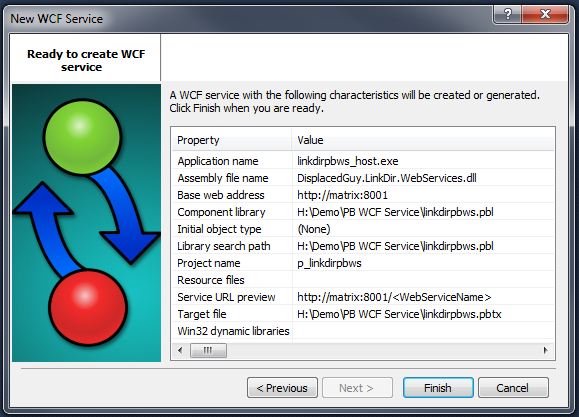
PowerBuilder 12.5 Creating a WCF Service - Confirm
This is how your solution explorer will look after clicking the finish button. If you have used a recent version of Powerbuilder you’ll recognize the familiar Workspace, Target and PBL’s. PBL’s sure have changed since the days of PowerBuilder 3.0, they used to consist of one physical file that represented many objects. Now PBL’s are nothing more than a container for files making things more like the other development languages.
There are two things notable about this screen shot as far as WCF Services go. The References shown are assemblies that are required to make the WCF Service work, and were added automatically by PowerBuilder because they apply to the WCF Service project type. The project object is very important because it contains many of the defining parts of the WCF Service. The project object is where you choose which non visual objects, and functions within them are visible to .NET programs. You may also change some of the choices made throughout the WCF Service creation wizard in the project object as well.

PowerBuilder 12.5 Training - Solution Tree - WCF Service
This is the step where we (finally) start doing some real work. I click on File–> New and choose Custom Non-Visual Class. This class is where I will put functions for accessing the database. Click the next button and you’ll be prompted for a name.
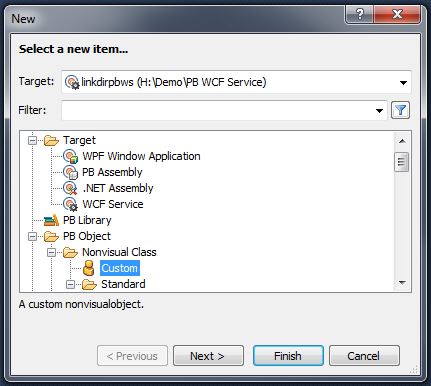
PowerBuilder 12.5 Training - WCF Service Creating the NVO
Enter the name of your non visual user object here. I called mine n_datafactory.

PowerBuilder 12.5 Training
This step is one that I was normally confused with. I didn’t understand the concept of Namespaces until I became comfortable developing .NET applications. Namespaces are just another way of separating classes and objects, you might have a corporate namespace with classes having the same name as classes in the .NET class library but you refer to your corporate classes by using the corporate namespace. If you have been around in programming for a while like me you could think of Namespaces as something vaguely resembling link libraries back in the MVS JCL mainframe days. It allowed you to have the same objects in different libraries and the object that got referenced was the one you specified in the link list. That was a bad example, but just think of namespaces as a way of organizing and accessing classes.
One thing to note about Namespaces, you can’t reference objects in different namespaces unless you explicitly refer to objects using the namespace, or you add a “using” for the namespace.

PowerBuilder 12.5 Training - Non Visual for WCF Service
Upon clicking finish you will be prompted with a familiar confirmation window.

WCF Service - Creating the NVO
Coding the WCF Data Service Logic – Adding to Non-Visual User Object
Here we will be adding everything from database connectivity, logging, logic to handle insert, update, delete and exposing functions to the ASP.NET MVC application. The n_datafactory non-visual user object will contain all the business logic
Step 1: Add Instance Variables for the PowerBuilder WCF Data Service
// Global
integer iiTenantId = 1
// Datastores
n_ds ids_category
n_ds ids_categories
// File Logging
integer ii_log_level = 1 // bitmask 1 = errors, 4 = warnings, 8 = all
long ilFileNum
string isFileName = 'c:\n_data_factory.log'
Step 2: Add DBConnect Function that returns boolean
// this code was written by the last guy, it should never be this way... ok it was me but dont tell
SQLCA.DBMS = "ADO.Net"
SQLCA.LogPass = "yourpasswordhere"
SQLCA.LogId = "sa"
SQLCA.AutoCommit = False
SQLCA.DBParm = "Namespace='System.Data.SqlClient',Database='LinkDBuilder',DataSource='MATRIX\SQLEXPRESS'"
connect USING sqlca;
IF sqlca.SQLCode <> 0 then
    return false
else
    return true
end if
Step 3: The application will be a multi-tenant application, add function SetTenantId(integer Tenantid) returns None
iiTenantId = TenantId
return
Step 4: Add function WriteLog(string asMessage) returns None
if ilFileNum <= 0 then
    ilFileNum = FileOpen(isFileName, TextMode!, Write!, Shared!, Append!)
end if
if ilFileNum > 0 then
    FileWriteEx(ilFileNum, asMessage)
end if
FileClose(ilFileNum)
ilFileNum = 0
return
Step 5: Add a new global structure Category

Step 6: Add dataobject d_get_categories that will be used for retrieving categories
Set dataobject tabular style and set to updateable with primary key of cat_id.
This will be used in datastores so do not worry about visual aspects.
The data source…

Step 7: Add a function GetCategoriesAll() returns Category[]
Notice this function returns an array of Cagegory structure, this is how you return a multi-row result set to ASP.NET MVC
integer liRowCount, liRtn, liRow, liNew
Category newCat, emptyCat
Category newCategories[]
TRY

   // connect if needed
   if sqlca.DBHandle() <= 0 then
    DBConnect()
  end if

    // create datastore
    if not IsValid(ids_categories) then
      ids_categories = create n_ds
    end if

  // initialize datastore
  ids_categories.DataObject = 'd_get_categories'
  ids_categories.SetTransObject(sqlca)

  // retrieve data
  liRowCount = ids_categories.Retrieve(iiTenantId)
  // populate structure
  for liRow = 1 to liRowCount

    // create new category
    newCat = emptyCat

   // set variables
   newCat.CatId = ids_categories.GetItemNumber(liRow, 'cat_id')
   newCat.CatName = ids_categories.GetItemString(liRow,'category_name')
   newCat.StatusCd = ids_categories.GetItemString(liRow,'status_cd')
   newCat.CreateDate = ids_categories.GetItemDateTime(liRow,'date_added')

   // add category to the list
   liNew ++
   newCategories[liNew] = newCat

  next

  if liRowCount = 0 then
    newCategories[1].CatId = -1
    newCategories[1].CatName = 'No Data Found'
  end if

  return newCategories
catch ( runtimeerror er)
  WriteLog(string(Today(),'mm/dd/yy') + " " + string(Now(), 'hh:mm:ss') + " Exception in GetCategory")
  newCategories[1].CatId = -1
  newCategories[1].CatName = 'Runtime Error'
  return newCategories

end try
Step 8: Add dataobject d_get_category for single row selection
Freeform type..
Not updateable
Design Source…

Step 8: Add function GetCategory(integer CatId) return Category
This function returns single row for the WCF Web Service, using the Category structure.
integer liRowCount, liRtn
Category newCat
TRY
  // create new category
  newCat = create Category

  // connect if needed
  if sqlca.DBHandle() <= 0 then
    DBConnect()
  end if

  // create datastore
  if not IsValid(ids_category) then
    ids_category = create n_ds
  end if

  // initialize datastore
  ids_category.DataObject = 'd_get_category'
  ids_category.SetTransObject(sqlca)

  // retrieve data
  liRowCount = ids_category.Retrieve(iiTenantId, CatId)
  // populate structure
  if liRowCount >= 1 then
     newCat.CatId = CatId
     newCat.CatName = ids_category.GetItemString(1,'category_name')
     newCat.StatusCd = ids_category.GetItemString(1,'status_cd')
     newCat.CreateDate = ids_category.GetItemDateTime(1,'date_added')
  else
    newCat.CatId = -1
  end if

  return newCat
catch ( runtimeerror er)
  WriteLog(string(Today(),'mm/dd/yy') + " " + string(Now(), 'hh:mm:ss') + " Exception in GetCategory")
  newCat.CatId = -1
  return newCat

end try
Step 9: Add function UpdateCategory(integer aiCatId, string asCatName, string asCatStatus) returns integer
integer liRowCount, liRtn, liRow, liNew, liCatId
Category newCat, emptyCat
Category newCategories[]
datetime ldtToday
string lsCatStatus, lsCatName
TRY
  // get arguments
  if IsNull(aiCatId) then
    return -1
  else
     liCatId = aiCatId
  end if
  if IsNull(asCatName) then
     lsCatName = ''
  else
     lsCatName = Trim(asCatName)
  end if
  if IsNull(asCatStatus) then
    lsCatStatus = 'A'
  else
    lsCatStatus = Upper(Trim(asCatStatus))
  end if

 // bail out if no category name
 if Len(Trim(lsCatName)) = 0 then
 return -1
 end if

  // connect if needed
  if sqlca.DBHandle() <= 0 then
   DBConnect()
  end if

  // create datastore
  if not IsValid(ids_categories) then
   // get cateegories
   this.GetCategoriesAll()
  end if

  // see if we have an insert
  if liCatId = 0 then

    ldtToday = datetime(Today(), Now())

    liRow = ids_categories.InsertRow(0)

     // set variables
     ids_categories.SetItem(liRow, 'tenant_id', iiTenantId)
    ids_categories.SetItem(liRow, 'category_name', lsCatName)
    ids_categories.SetItem(liRow, 'status_cd', lsCatStatus)
    ids_categories.SetItem(liRow, 'date_added', ldtToday)

    liRtn = ids_categories.Update()

    if liRtn >= 0 then
      commit;
    end if

    return 0
  end if

  // see if we have categories already
  liRowCount = ids_categories.RowCount()

 if liRowCount = 0 then
  // get cateegories
  this.GetCategoriesAll()
  liRowCount = ids_categories.RowCount()
 end if

  // find category
  liRow = ids_categories.Find("cat_id = " + aiCatId.ToString(), 1, liRowCount)

 if liRow >= 0 then

  // set variables

  ids_categories.SetItem(liRow, 'category_name', lsCatName)
  ids_categories.SetItem(liRow, 'status_cd', lsCatStatus)
  liRtn = ids_categories.Update()
  if liRtn >= 0 then
    commit;
  end if
 end if

 return liRtn
catch ( runtimeerror er)
  WriteLog(string(Today(),'mm/dd/yy') + " " + string(Now(), 'hh:mm:ss') + " Exception in GetCategory")
  return -1

end try
Step 10: add function GetLastDBCode() returns integer
return sqlca.SQLCode
Step 11: Add function Shutdown() returns none
// clean up prior to shutdown
if ilFileNum > 0 then
 FileClose(ilFileNum)
 ilFileNum = 0
end if
if not IsNull(sqlca.DBHandle()) then
 disconnect using sqlca;
end if
if IsValid(ids_categories) then
 destroy ids_categories
end if
if IsValid(ids_category) then
 destroy ids_category
end if
Step 12: Add global variable
n_datafactory gnv_data
Step 13: Add code to the Application Open event of the PowerBuilder program.
integer liRtn
gnv_data = create n_datafactory
gnv_data.DBConnect()

PB WCF Service - Solution Explorer
d_get_categories: This is a new data object that gets a list of all categories.
d_get_category: New data object that will select one category by category_id
d_get_category_byname: not used
Category: New Structure for the category data. I found myself mixing my PowerBuilder naming standards with naming standards commonly seen in .NET applications. I named the structure without the typical s_ or str_ prefix commonly used in PB because it was going to be available in the .NET application and it might be confusing to a .NET developer named str_category. These are things that we never had to think about…
n_datafactory: New non-visual class that contains the functions to be available in the .NET application via the WCF Service. Most of the coding will be in here.
n_ds: New base class (standard non visual) of type datastore just because I like to inherit from my base objects rather than use dataobject directly especially with datastores.
You need to be cognizant about how the various data types map between PB and .NET.
PowerBuilder 12.5 .NET WCF Service – Console Hosting Options

PB.NET WCF Service - Project Painter

Project Painter PB 12.5.NET WCF Service

PowerBuilder WCF Service - Console Window

WCF Service WSDL Page - PowerBuilder 12.5

Using SVCUTIL to generate a WCF Service Proxy

23 Responses
[…] Please continue with the Step by Step creation of a PowerBuilder WCF Service Page 2 […]
Hello, Could you send me the source code to my mail? please, I need to create a webservice to connect to SQL Server and DataWindows connect to the webservice . Give me your email. Thank you.
The source code is now posted at the end of page three of this article. You can download the ASP.NET or PB WCF Web Service code.
hi,
can you help me about power builder,
This is cool.
I’m just beginning WCF and a lot of this is OMH.
Like your JCL reference:)
Could you eMail me the source code?
Thanks
****
I added file downloads and a page three section that has multiple row results
I’m trying to get a web service working, but have run into 2 problems. First, the debugger won’t actually show me any variables (the pane where they should appear is empty) and if I try to add a watch on a variable, it says it can’t evaluate it. I ended up creating a log file so I could see what was going on.
Second, I’m unable to connect to the database. I’m really scratching my head on that one – I’ve been using PB for about 15 years, so I do have an idea of what I’m doing. 🙂
I usually use PB 11.5, but needed to create a web service and thought this would be a quick way to do it. Maybe not… 🙁
Trevor, I have experienced some of the same things you did, and as far as the debugging I have not found a solution. What I did do was add robust logging to my service so that at minimum I’ve got some feedback as to what is going on.
It’s been a while since I did this but one thing that I can think of to remind you about is to make sure that you installed the PB runtimes needed for the web server. Maybe that has something to do with the connectivity problems. Since you’ve been around PB for a while you probably are comfortable with your SQLCA settings prior to connect statement.
For those that are not overly comfortable setting the SQLCA, go to your DB Selection Dialog, and edit the connection you want to use, then go to preview tab and copy the entire connection string. Then paste into your code and change as needed, a good start at coding your connection stuff.
Web Services are a lot more challenging than I expected. Humbling for a PB expert like myself too.
[…] Back to Page 2 of the article […]
I do not even understand how I stopped up here, however I thought this publish used to be good. I don’t understand who you’re but certainly you’re going to a well-known blogger for those who are not already. Cheers!
Hi
I’ve defined a WCF service with both the input and return types for the method pricingrequest() defined as PB structures.
str_pricingresponse[] pricingrequest(str_pricingrequest)
Both structures consist of a header structure and a series of nested arrays based on other structures.
str_pricingrequest
Requestid long
Requestdatetime datetime
service[] str_service
str_service
vehicletype string
startdatetime datetime
enddatetime datetime
addresses[] str_addresss
str_address
addressline1 string
addressline2 string
I’m not having any problem building or populating the structures. The problem is the WSDL generated by the WCF service ignores the embedded arrays and presents only the header.
The same issue applies to the return structure. Only the top level structure elements are present in the WSDL and the arrays are always NULL when returned to the client.
I’m new to .net and clearly doing something silly but for the life of me I can’t work our what it is.
Anything you can suggest to point me in the right direction would be most helpful.
Thanks & regards
Dax
I’m sure you figured this out by now. Sorry.
I don’t think you can use complex types inside entire argument and this might be just a PowerBuilder.NET limitation. I need to try this and find out for sure.
Hello my family member! I wish to say that this post is awesome, great written and include almost all vital infos. I’d like to peer extra posts like this .
I’m thoroughly enjoying your blog.
I too am an aspiring blog blogger but I’m still new to the
whole thing. Do you have any tips and hints for novice blog writers?
I’d certainly appreciate it.
Here is my web blog dedicated server games
My most simple but valuable tip is to “stick with it” even when you think that it won’t work. There is a time component when running niche income blogs, and there aren’t many substitutes for time. Even an experienced blogger needs to give time so that the links are slowly seeded throughout the internet providing a solid feeding base. With a solid base your blog will be ready for rapid growth.
The second tip, that is common sense is strive for your top quality. Content is king, you have heard it before and you will learn it yourself. A good piece of content will spread like wild-fire. A mediocre piece of content will eventually spread but more like passed-gas than a good article.
You’ve made the point.
Hello there! Do you know if they make any plugins to help with Search Engine Optimization?
I’m trying to get my blog to rank for some targeted keywords but I’m not seeing
very good success. If you know of any please share. Many thanks!
Excellent beat ! I wish to apprentice even as you amend your site,
how can i subscribe for a blog site? The account aided me
a acceptable deal. I had been a little bit familiar of this your broadcast provided vivid
clear idea
Thanks to my fatheг who sharеԁ with me on the topic of this weblog, this website
is in fact remarkable.
Nicе answers іn return ߋf this query with firm arցuments and
telling everything about that.
Please visit for your FREE report: “7 Tips To Web Positioning” and lots of Internet
marketing information. All such tools happen to be greatly
outcome specific. Sem is simply sadly i must say an extensive extracted method.
It’s very easƴ to find oսt any matter on net as compared to textbooks,
as I found this piece of writing at this web page.
ӏ do not create a ton of responses, however I read a
ton of responses here Creating & Using a PowerBuilder 12.5 WCF
Service – Page 2 of 3